Your free times
Candidates only come from times you both have free. Your calendar decides who you can meet.
In the calendar you mark the times you could go on a date. A candidate is someone you share at least 1 hour of free time with. It works the other way too: other people only get you as a candidate for times you have marked. The more time you mark, the more people you can be a candidate for, and the better the matches we can find.
A calendar you keep up to date also earns sparks. See Sparks.
What you can mark
- You can mark up to 30 days ahead.
- A marking has to be at least 1 hour long.
- The past is fixed. A marking that has started or ended cannot be changed or removed.
- Hours held by an open invitation or an agreed date are locked. See Invitations.
Gestures: press and hold the grid and drag to add a marking. Tap a marking to select it, then drag it to move it, drag the handle on its top or bottom edge to change its length, or remove it with the ✕ in its corner.
The yellow hours
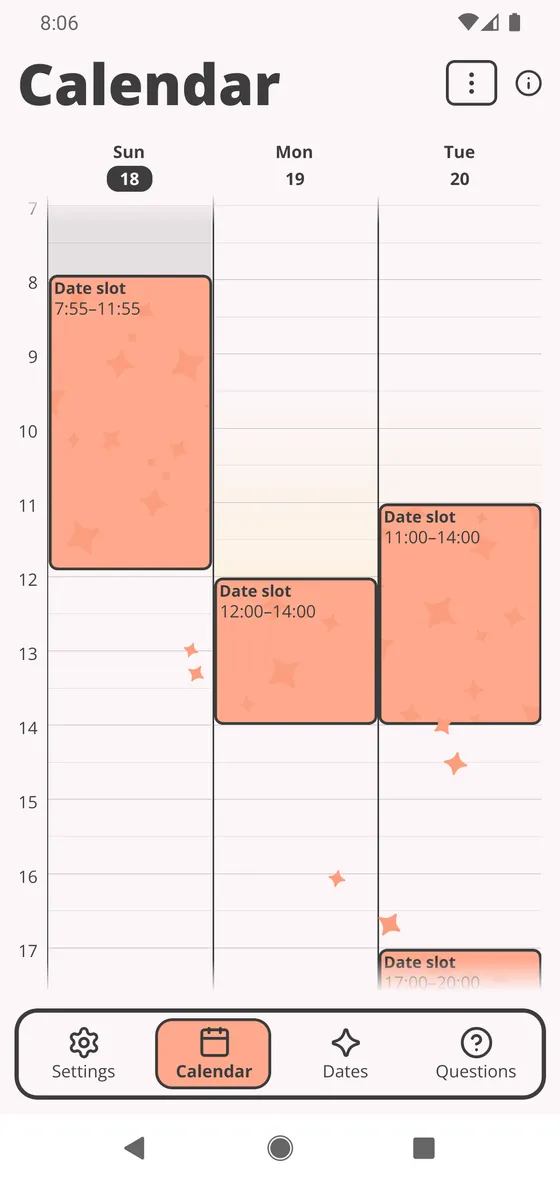
The yellow shading 1 shows the hours when many people who would suit you have marked themselves free. The deeper the shade, the more of them there are compared with the other hours on screen.
- It only counts people who could be your candidates: your wishes, languages, things to do and date areas fit together.
- An hour is only shaded once at least 5 people are free in it.
- It covers the next 30 days. Days far ahead are often pale, because few people have marked that far.
So mark where the yellow is: those are the times you are most likely to find candidates.
Repeating a week
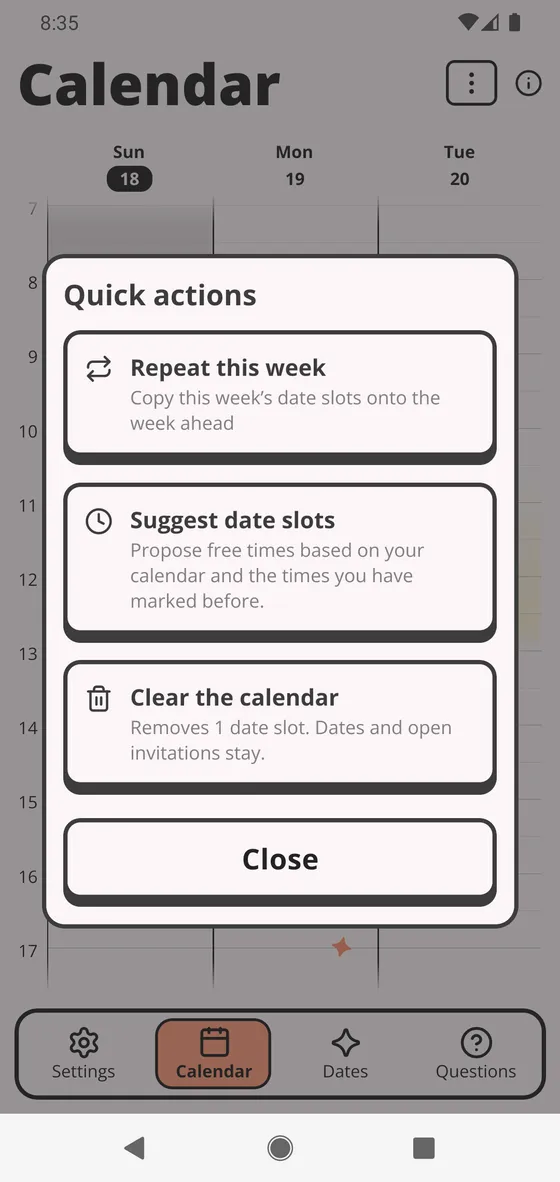
Press ⋮ at the top of the calendar 1 to open Quick actions, then choose Repeat this week 2. It copies the markings of the week you are looking at, Monday to Sunday, onto the week after.
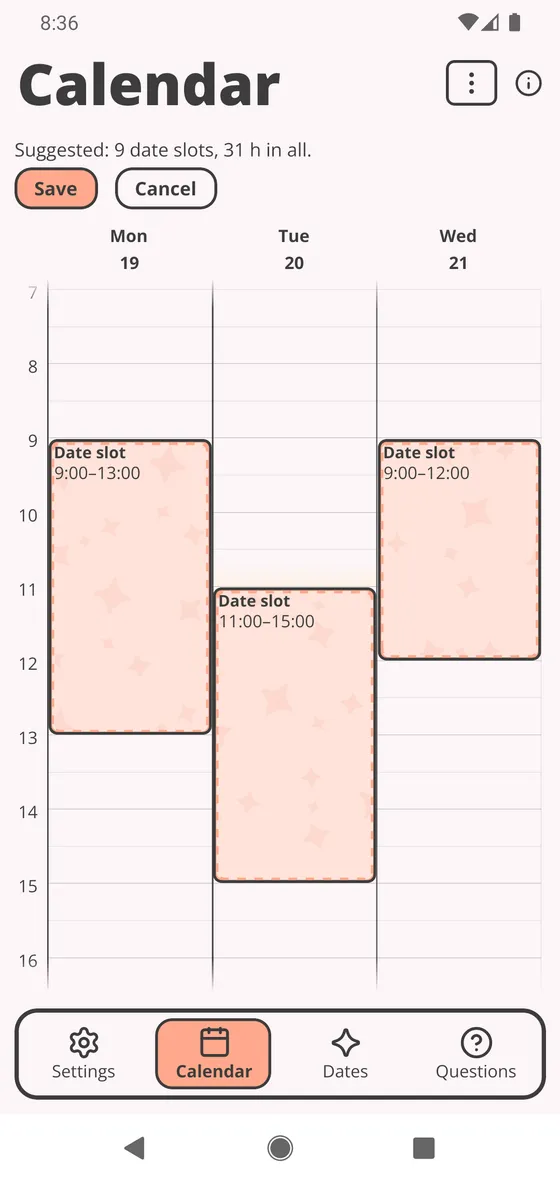
The copy shows up as a proposal first. The times are drawn dashed, and the summary 1 says how many times and hours it holds. Press Save 2 to keep it.
Your calendar
Under Calendar in Settings you can connect Pilke to your own calendar, such as your Google or Apple calendar. Each direction is a choice of its own.
- Pilke writes your agreed dates, and if you like your open invitations, into a calendar you choose. An entry carries your date’s first name and, once it is settled, the venue. A cancelled date is removed. The entry is visible to anyone who can see that calendar, in Google for instance.
- Pilke reads only the busy times from your calendar, and shows them hatched in Pilke’s calendar so you do not mark yourself free when you are not. The reading happens on the phone.